Walls & line of sight
By default, Dynamic Vision only limits how far a token can see. It doesn't stop a token from seeing around corners within that range. The Wall tool fixes that: walls you draw actually block a token's vision, so a corridor around a corner stays dark even if it's well within the token's radius.
Drawing a wall
Switch to the Wall tool in the Map Tools toolbar (keyboard shortcut 8). This tool is only available to the DM; players never see it.

Click along the battle map to lay down points, the same way you would with the Fog tool. Each click adds another point to the wall, shown as a gold dashed line as you go.
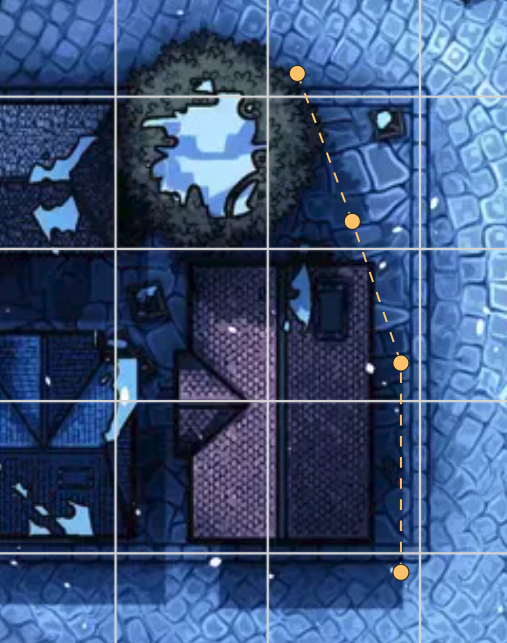
- Click on any of the wall's existing points to finish and save it.
- Right-click to undo the last point you placed.
- Press Escape to cancel the wall you're currently drawing.
Editing and deleting walls
A finished wall renders as a thin gold line (it turns brown on hover) that you can drag to move as a whole, and each of its endpoints is its own draggable handle if you want to reshape it.
To delete a wall, right-click it (or press-and-hold on a touchscreen) and choose Delete from the menu that appears.
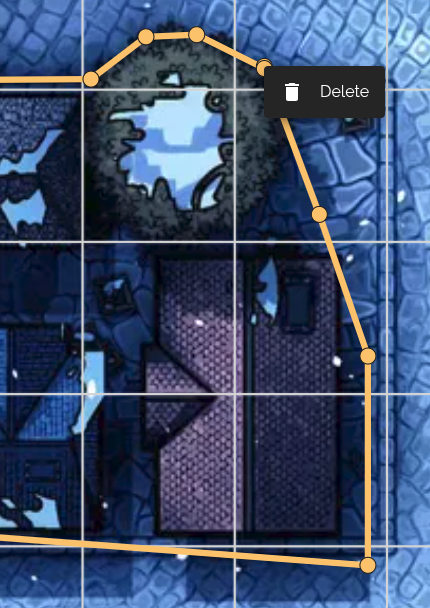
Walls are a DM-only drawing tool. Your players never see the wall lines themselves, only the effect they have on vision.
What your players see
Once a wall is in place, any token's vision circle (bright or dim) is clipped by it. The circle stops at the wall instead of passing through it, so a monster waiting around the corner stays hidden until a token actually has a clear line of sight to it.
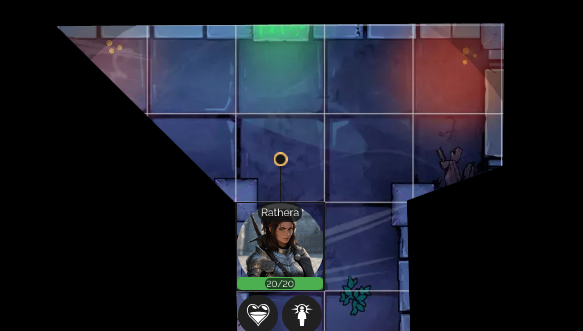
Remembered exploration respects walls too. Moving a wall after an area has already been explored won't retroactively reveal or hide what's remembered there, but any newly explored area will be correctly clipped by the wall's current position.