Switching alternate forms
Some tokens need to change shape mid-game — a druid wildshaping, a mimic revealing itself, or a villain transforming. Alternate Forms let a single token switch between several different Adventurer, Monster, or Object assets, right on the map.
Managing a token's forms
Right-click (or click-and-hold) the token on the map, then choose Manage Alternate Forms… from its actions menu. This option is only available to the DM, and only when a single token is selected.
This opens the Manage Alternate Forms dialog, listing every Adventurer, Monster, and Object in your campaign. Use the Search field to find what you're looking for, then click a row to add (or remove) it as one of the token's forms.
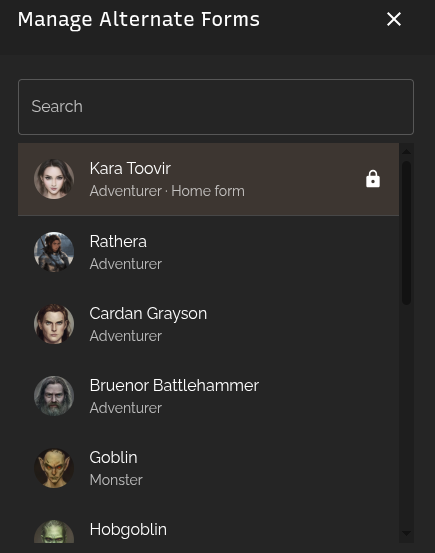
The token's original asset is always pinned to the top of the list as its Home form, marked with a lock icon. It can't be removed — you can always switch a token back to what it originally was.
Switching forms on the map
Once a token has one or more alternate forms configured, right-click it and choose Switch Form to see a submenu listing every available form. Click one to swap the token to that form immediately.
Unlike managing forms, switching between them is available to both the DM and the player controlling the token — handy for letting a player trigger their own wildshape or polymorph without needing the DM to do it for them.
Hit points per form
Each Monster form a token has used keeps its own Hit Points, tracked separately. Taking damage while wildshaped into a bear doesn't carry over to the creature's normal form (or to any other form it can take) — switching back later restores whatever HP that form was last left at. The first time a token takes on a given form, its HP is rolled fresh according to your Campaign Settings.
If an open stat block panel is showing the token, it automatically follows along to the new form when you switch.